Gesture App: Quick Commands Made Easy (2026 Review)
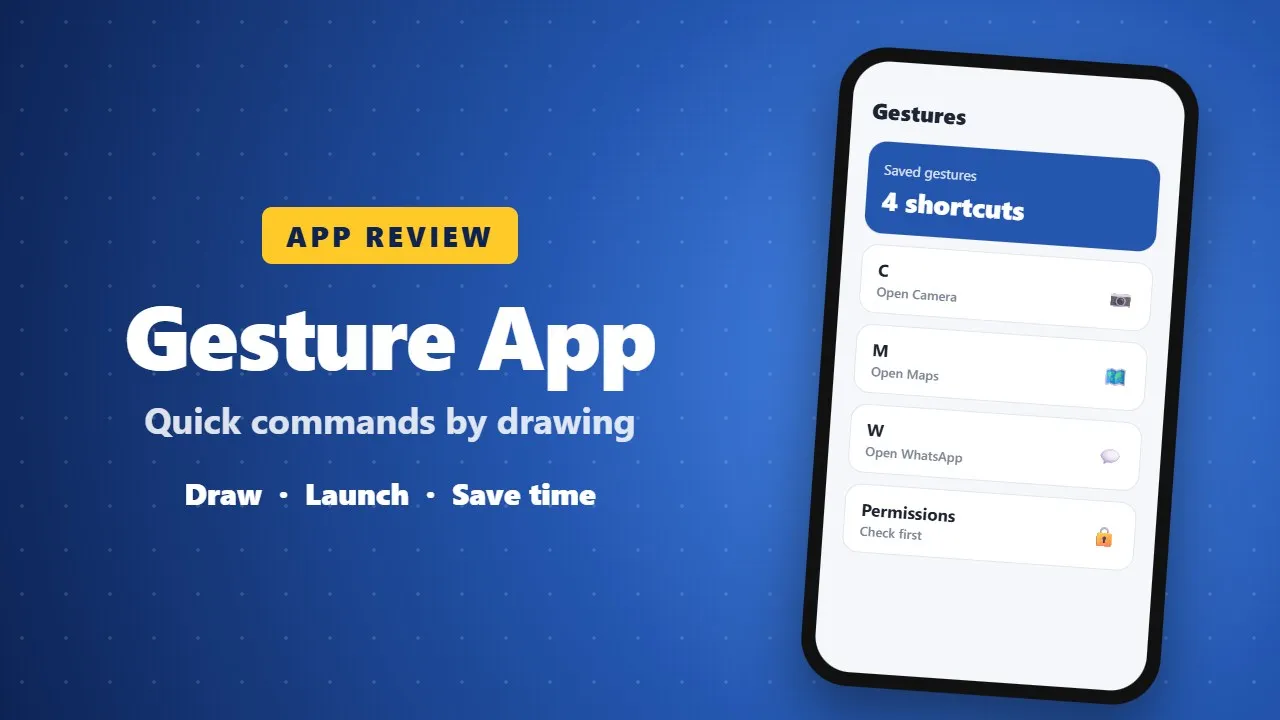
The Gesture app lets you run quick commands by drawing shapes on your screen. It can save time for repeated tasks. It may need accessibility permission, so install it only from a trusted developer and check the privacy policy.
In today’s fast-paced digital world, efficiency is everything. Whether you are a programmer, designer, gamer, or simply a productivity enthusiast, finding ways to save time and streamline tasks can make a huge difference. One often-overlooked method for boosting productivity is using custom gestures to execute quick commands and register shortcuts. In this guide, we’ll explore what custom gestures are, how they work, why they’re useful, and how you can implement them effectively on your devices.
What Are Custom Gestures?
Custom gestures are user-defined patterns or motions—drawn with a finger, stylus, or mouse—that trigger specific commands on a device or app. Unlike standard keyboard shortcuts or menu clicks, gestures provide a more intuitive and faster way to interact with technology. Think of it as drawing a symbol or shape to tell your device, “Do this now!” (0029)
For example, you could:
-
Draw a circle to open your favorite app.
-
Swipe a “Z” to undo an action.
-
Draw a checkmark to save a file or mark a task complete.
Essentially, gestures replace repetitive typing or searching through menus, letting you perform complex actions in a fraction of a second.
Why Use Custom Gestures?
The benefits of using custom gestures go beyond simple convenience. Here’s why integrating gestures into your workflow is a game-changer:
-
Speed and Efficiency
Gestures let you execute commands faster than typing shortcuts or navigating menus. For example, opening a frequently used app or performing an action with a simple swipe is much quicker than multiple clicks. -
Reduced Cognitive Load
Remembering complex keyboard shortcuts or multi-step commands can be mentally exhausting. Gestures, being visual and often intuitive, are easier to memorize. -
Accessibility
Custom gestures can be especially helpful for users with disabilities or those who prefer touch input over traditional input devices. A simple swipe can replace difficult key combinations or mouse maneuvers. -
Enhanced Creativity
For designers, artists, and developers, gestures can be used to trigger tools or scripts quickly, allowing for a smoother creative process. For instance, a gesture could instantly switch brushes or execute a commonly used Photoshop action.
How Custom Gestures Work
Custom gestures rely on software that recognizes patterns and movements. These can be simple geometric shapes (lines, circles, zigzags) or more complex freehand drawings. When a gesture is drawn, the software compares it against a predefined library of gestures and triggers the corresponding command.
Most gesture recognition systems use algorithms such as:
-
Template Matching: Compares the drawn gesture to a stored template.
-
Machine Learning Recognition: Uses AI to recognize gestures even if they vary slightly in size or orientation.
-
Stroke Analysis: Breaks gestures into strokes and analyzes their sequence and direction.
This technology allows gestures to be highly flexible. You can customize gestures for almost any action, from opening apps to controlling hardware functions like volume or brightness.
Popular Tools and Platforms for Custom Gestures
Many modern devices and apps support gesture shortcuts, either natively or through third-party apps. Here’s a breakdown:
1. Android Devices
Android phones often come with built-in gesture features. You can:
-
Draw letters on the screen to open apps.
-
Swipe gestures for navigation (back, home, recent apps).
-
Use third-party apps like Gesture Control, Nova Launcher, or Tasker to create custom gestures for specific tasks.
2. iOS Devices
iPhones and iPads have accessibility gestures and Shortcuts app integrations:
-
The Shortcuts app allows you to create automated actions triggered by custom gestures.
-
AssistiveTouch lets users define multi-finger gestures to perform system functions.
3. PC and Mac
On desktops, gestures can be implemented using a mouse, touchpad, or touchscreen:
-
Windows Precision Touchpad supports multi-finger gestures for actions like switching desktops or opening apps.
-
BetterTouchTool (Mac) allows custom mouse, trackpad, and keyboard gestures to trigger commands.
-
Tools like StrokesPlus and gMote let you draw gestures with a mouse to execute commands in Windows.
4. Creative Apps
Software like Photoshop, Illustrator, Blender, or CAD programs often allow gesture plugins or macros:
-
Draw a gesture to switch tools, apply filters, or execute scripts.
-
This is especially useful for artists and designers who want to minimize workflow interruptions.
Steps to Create Your Own Custom Gestures
Creating effective custom gestures doesn’t require coding skills, but it does require planning. Here’s a step-by-step guide:
Step 1: Identify Frequent Tasks
Start by analyzing your daily workflow. Which tasks are repetitive or take too long using traditional inputs? Examples:
-
Opening apps or folders.
-
Copying/pasting frequently used text.
-
Undo/redo actions in design software.
Step 2: Choose Your Gesture Tool
Depending on your device, select a tool that allows gesture customization:
-
Mobile: Tasker, Gesture Control, Nova Launcher.
-
Desktop: BetterTouchTool (Mac), StrokesPlus (Windows).
-
Creative Apps: Photoshop scripts, Illustrator actions.
Step 3: Design Gestures That Are Intuitive
Your gestures should be easy to draw and remember. Some tips:
-
Use simple shapes (lines, circles, triangles).
-
Avoid gestures that are too similar to each other.
-
Map gestures to actions logically (e.g., a “C” for copy, a “V” for paste).
Step 4: Test and Refine
Practice drawing your gestures multiple times to ensure the software recognizes them reliably. Adjust the shape, size, or stroke direction if necessary.
Step 5: Automate Complex Actions
Many gesture tools allow you to chain commands. For instance, a single gesture could:
-
Open an app.
-
Paste pre-written text.
-
Send an email.
This automation reduces clicks, typing, and decision-making, streamlining your workflow like never before.
Tips for Maximizing Gesture Productivity
-
Consistency is Key: Keep gestures consistent across devices or apps for easier memorization.
-
Use Visual Memory: Draw gestures that are visually linked to their action. Your brain will remember them faster.
-
Limit the Number: Don’t overload yourself with too many gestures. Start small with 5–10 essential actions.
-
Combine Gestures with Keyboard Shortcuts: For maximum efficiency, use gestures for touch or mouse tasks and keyboard shortcuts for typing-intensive actions.
Real-Life Examples of Gesture Productivity
-
Graphic Design: An illustrator can draw a “star” gesture to switch to the brush tool and a “circle” gesture to switch to the eraser instantly.
-
Mobile Workflow: On Android, a user can draw a “W” on the lock screen to open WhatsApp directly.
-
Desktop Automation: On Windows, a designer could draw a “Z” with the mouse to undo the last action in Photoshop, skipping menu navigation or Ctrl+Z.
-
Accessibility Improvement: Users with mobility limitations can use gestures to control their device without relying on complex key combinations.
Future of Gesture-Based Shortcuts
As AI and machine learning continue to advance, gesture recognition is becoming smarter and more adaptive. Soon, devices may recognize even handwriting, pressure, and speed variations, making gestures even more intuitive and personalized.
Moreover, as more apps adopt gesture support, we may see gesture ecosystems, where gestures work across multiple devices and platforms seamlessly. Imagine drawing a “C” on your phone to copy text and having it automatically paste on your desktop. That’s the power of gesture integration in a connected digital world.
Conclusion
Custom gestures are a powerful yet underutilized tool for productivity enthusiasts. By allowing you to execute commands with simple motions, gestures save time, reduce cognitive load, and enhance creativity. With the right tools and planning, anyone can implement custom gestures on their mobile device, PC, or creative software.
The key is to start small, choose intuitive gestures, and gradually integrate them into your daily workflow. Once mastered, gestures can transform the way you interact with technology, making your digital experience faster, smarter, and more fluid.
So, why wait? Start drawing your custom gestures today and unlock a new level of productivity. Your future self will thank you.