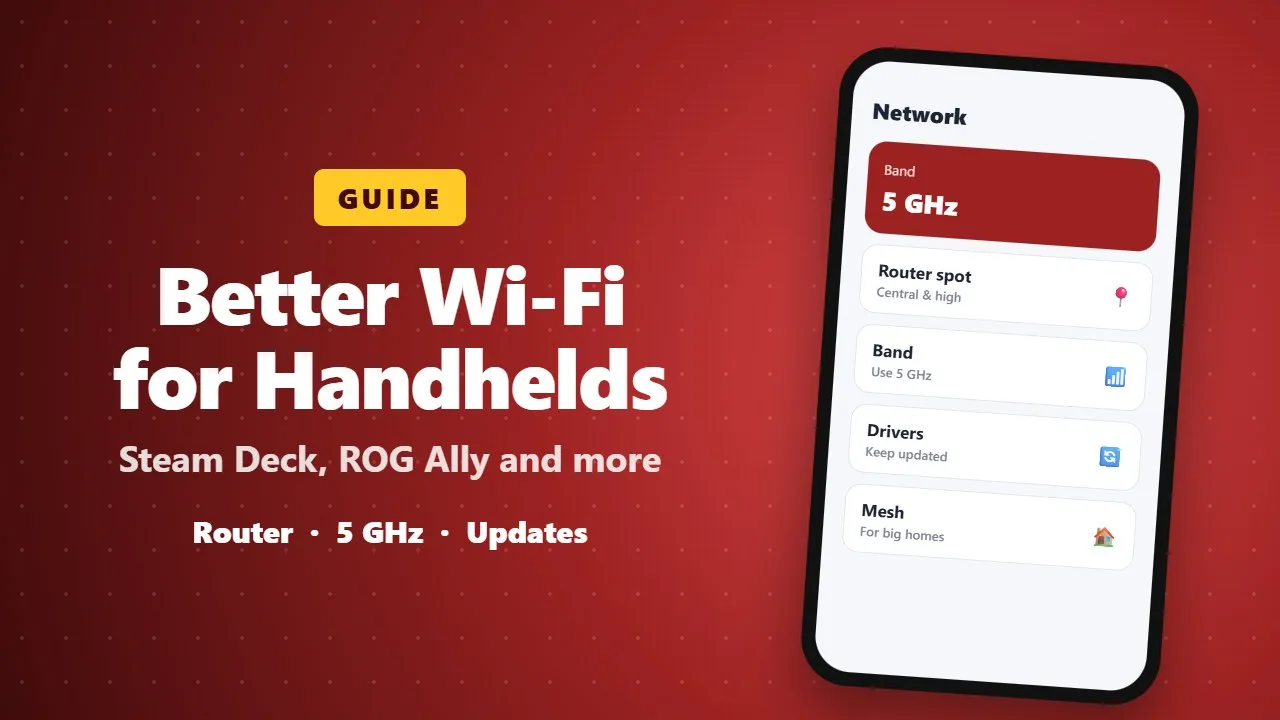
How to Improve Wi-Fi on Steam Deck, ROG Ally and Other Gaming Handhelds
Gaming handhelds like the Steam Deck and ROG Ally can suffer from weak Wi-Fi. These practical tips cover router placement, the 5 GHz band, driver updates and settings that make downloads and online play more stable.
PC gaming handhelds like the Steam Deck OLED, ROG Ally X, and Lenovo Legion Go have completely changed how we play. You no longer have to sit at a desk to enjoy your favorite PC titles — you can relax on the couch, lie in bed, or even chill on the balcony while gaming.
But there’s one silent enemy that can ruin that freedom in seconds: poor Wi-Fi performance.
If your downloads take forever, your online matches lag, or your connection keeps dropping whenever you move to another room — the issue isn’t your handheld. It’s your network setup.
Let’s explore how you can unlock the full potential of your gaming handheld by boosting your Wi-Fi speed, stability, and coverage.
⚡ 1. Upgrade to a Modern Wi-Fi 6 (or Wi-Fi 7) Router
Most Wi-Fi issues stem from using an outdated router.
If your router is more than three to four years old, it probably lacks the technology to handle multiple high-bandwidth devices — like gaming handhelds, TVs, and smartphones — at once.
Modern routers with Wi-Fi 6 or Wi-Fi 7 support can dramatically improve your gaming experience by offering:
- Lower latency (fewer spikes and drops during gameplay)
- Better range (fewer dead zones)
- Higher speed per device (even when the whole family is online)
- Improved efficiency through features like OFDMA and MU-MIMO
👉 Pro Tip:
If you’re serious about smooth online gaming, go for routers like:
- ASUS ROG Rapture GT-AX11000 (Wi-Fi 6)
- TP-Link Archer BE800 (Wi-Fi 7)
- Netgear Nighthawk XR1000 (optimized for gaming)
📶 2. Find the Best Spot for Your Router
Even the most advanced router performs poorly if it’s hidden behind walls or tucked under furniture.
Wi-Fi signals weaken when blocked by concrete, metal, or thick objects.
Here’s how to position your router for maximum coverage:
- Place it in the center of your home for even signal distribution.
- Keep it elevated — on a shelf or wall mount — to reduce interference.
- Avoid placing it near microwaves, cordless phones, or smart TVs.
You can also use free tools like NetSpot or WiFi Analyzer to map your signal strength and find the weak areas.
🌐 3. Use a Mesh Wi-Fi System for Bigger Homes
If your Wi-Fi signal disappears in certain rooms, a mesh Wi-Fi system is your best friend.
Instead of relying on a single router, mesh systems use multiple nodes that communicate with each other to blanket your entire house in strong Wi-Fi.
This ensures your handheld seamlessly connects to the strongest signal as you move around — no more sudden disconnects mid-game.
Recommended Mesh Systems:
- Google Nest WiFi Pro
- ASUS ZenWiFi AX
- Eero Max 7
🎮 4. Prioritize Gaming Traffic (QoS Settings)
Many routers offer a feature called QoS (Quality of Service), which allows you to prioritize gaming traffic over other types of data.
For example, if someone’s streaming Netflix or downloading files, your router will make sure your gaming packets get the VIP treatment — keeping your gameplay smooth and stable.
How to do it:
- Log in to your router’s admin panel (usually via 192.168.1.1 or a mobile app).
- Look for “QoS” or “Gaming Mode.”
- Add your handheld’s MAC address or device name.
This small tweak can drastically reduce latency in online games.
🔌 5. Use a 5GHz Band — Not 2.4GHz
Most routers broadcast two frequency bands: 2.4GHz and 5GHz.
While 2.4GHz has better range, 5GHz offers much faster speeds and lower latency — ideal for gaming.
Make sure your handheld is connected to your 5GHz Wi-Fi network.
You can usually tell by the network name (e.g., “HomeWiFi_5G”).
If your device allows, you can even rename your Wi-Fi bands separately in your router settings so you always know which is which.
🔄 6. Keep Your Router Firmware Updated
Just like your handheld’s software, your router’s firmware needs regular updates to fix bugs, improve performance, and patch security issues.
Most modern routers can update automatically, but you can also:
- Log into your router’s settings page.
- Look for “Firmware Update” or “System Update.”
- Check if a new version is available and install it.
Updated firmware can mean the difference between a choppy experience and buttery-smooth online play.
🧠 7. Reduce Interference from Other Devices
Wi-Fi interference can come from unexpected sources — Bluetooth devices, baby monitors, even your neighbor’s router.
To minimize interference:
- Disconnect unused smart home devices.
- Keep Bluetooth peripherals (like speakers) away from your router.
- Change your Wi-Fi channel in your router settings to a less crowded one.
Apps like WiFi Analyzer (Android) can show which channels nearby networks use so you can pick a cleaner one.
🔋 8. Optimize Your Handheld’s Network Settings
Finally, tweak a few things on your handheld for better wireless performance:
- Turn off background downloads or updates when gaming.
- Disable VPNs or network monitors that might slow your connection.
- Restart your device and router regularly to clear network cache.
If your handheld supports Ethernet via a USB-C hub, try wired gaming for the ultimate zero-lag experience — perfect for competitive online titles.
✨ Final Thoughts
Gaming handhelds like the Steam Deck OLED and ROG Ally X are built for freedom — but that freedom depends on your Wi-Fi’s strength.
By upgrading your router, positioning it strategically, and fine-tuning your network, you can turn your handheld into a portable gaming powerhouse.
No lag. No disconnects. Just pure, uninterrupted gameplay — anywhere in your home.
💡 Pro Tip for Gamers:
If you stream or download large game files frequently, consider investing in a Wi-Fi 7 router and multi-gig internet plan. It’s a long-term upgrade that’ll keep your network future-proof for years of gaming to come.